



 294 / 413

6/24
Presentation
Unity Dif is an optional program for Unity Pro. It can handle all Unity Pro automation
platforms. It compares two Unity Pro applications and returns an exhaustive list of all
the differences. Unity Dif improves productivity during the main life stages of a
control system, mainly during development and debugging of applications and
commissioning, operation and maintenance of the installation.
Software setup
Unity Dif can be launched in several ways:
b
From Unity Pro
b
From the Windows Start menu
b
From a command line interface without a graphical user interface
Unity Dif identifies all the differences between two Unity Pro applications at different
levels:
b
Hardware configuration
b
Network configuration (Modbus/TCP, CANopen and RIO (Quantum only))
b
All the variables and instances of function blocks
b
Structure and content of the application, regardless of which language is used
b
DFB and DDT code
b
Project options
b
…
The result of the comparison can be displayed in the user interface, printed or saved
in .txt file format.
Comparison
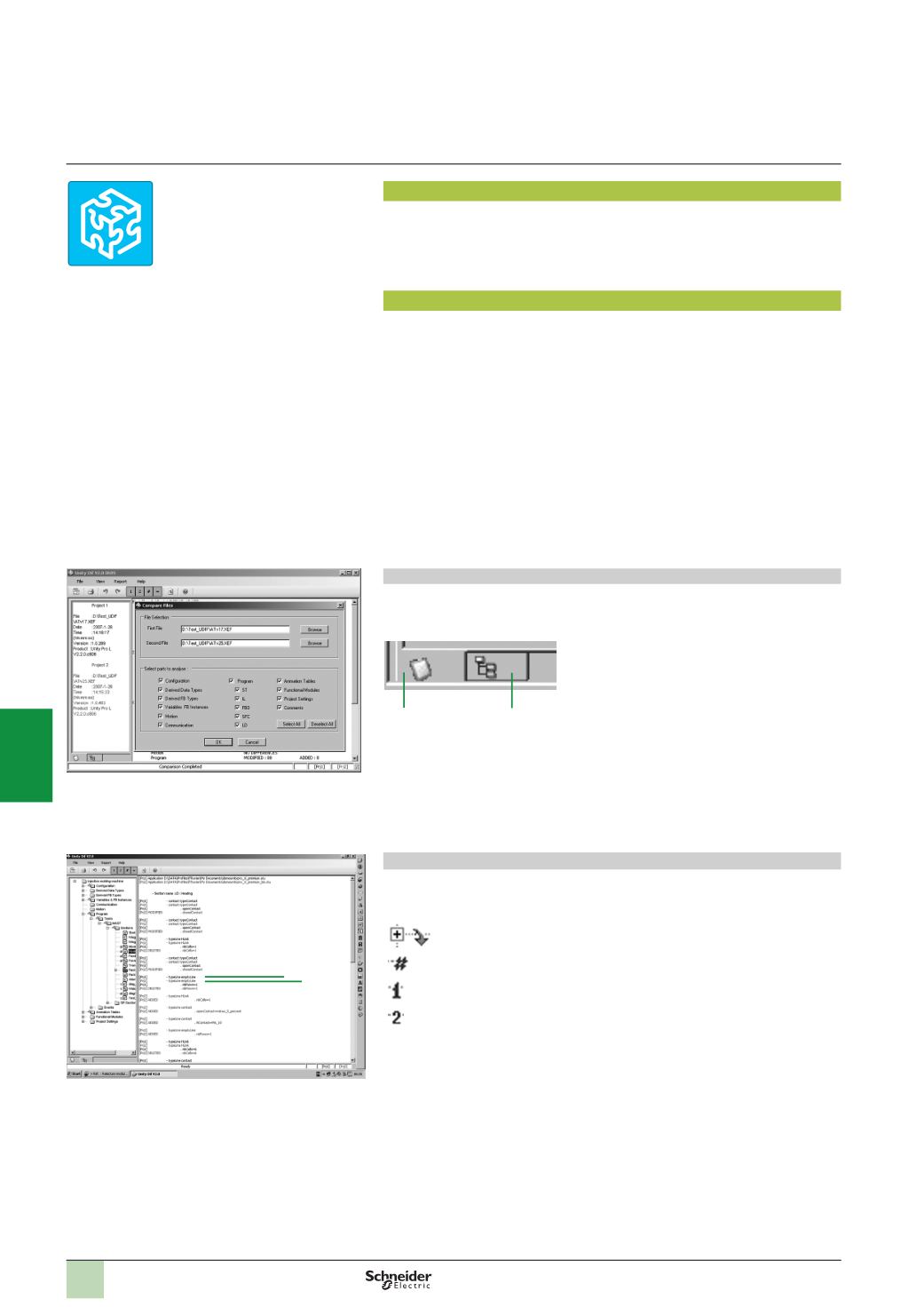
The end of the comparison operation is signalled by the appearance of the
application browser with its two tabs:
1
Identification tab for accessing the
characteristics of the two applications being
compared. The differences are summarized.
2
Browser tab for accessing the application tree
structure.
Displaying results
The tree structure can be accessed after comparison, via the Browser tab. It shows
any differences using four symbols, where the information associated with
application
1
appears in blue and that associated with application
2
appears in red:
This branch, appearing at this level in the tree structure, contains at
least one difference.
This block contains at least one difference.
This section is only present in application
1
.
This section is only present in application
2
.
In the example opposite, a difference is detected on the rung:
1
The line displayed in blue belongs to application 1 [Prj1].
2
The line displayed in red belongs to application 2 [Prj2].
The source code extracts of both applications can be used to locate the differences
precisely.
Comparison after selection of elements to be analyzed
2
1
Displaying results
1 2
Software
Unity Pro software
Unity Dif application comparison software
Presentation,
setup
Unity Dif comparison
2
1
3
4
5
6
7
8
9
10